ORBIT / Practical guides
Share your crew roster with family.
Import your roster into ORBIT, review the dates and times, then share selected flights or months through a private invitation. Each person uses their own account.
Sign in to use People and share your schedule.
From roster to shared calendar
Bring in your roster.
Sign in and open Import into ORBIT from your schedule or Settings. Choose a supported roster file or screenshot, or paste text. Schedule imports require sign-in; you review the result before saving.
Check dates, airports and time zones.
Supply the roster month and airline code if the source leaves them out. Confirm whether its times are local at each airport, UTC or Eastern Time. Check flight groups, overnight arrival dates and uncertain entries against the original.
Save, then choose your sharing scope.
Save the reviewed entries to My schedule. Choose Invite someone close, name the person and select the flights or months they may see. Review the scope before creating the private invitation.
Invite your person and check their view.
Send the private link to the intended recipient. They sign in, review and accept the invitation, then open your shared calendar in People. Keep the link private and confirm that the journeys they need are included.
A quick check before sharing
For an overnight Toronto–London flight, check the departure date and next-day arrival separately. Follow the roster’s stated time basis rather than assuming both times use your home time zone.
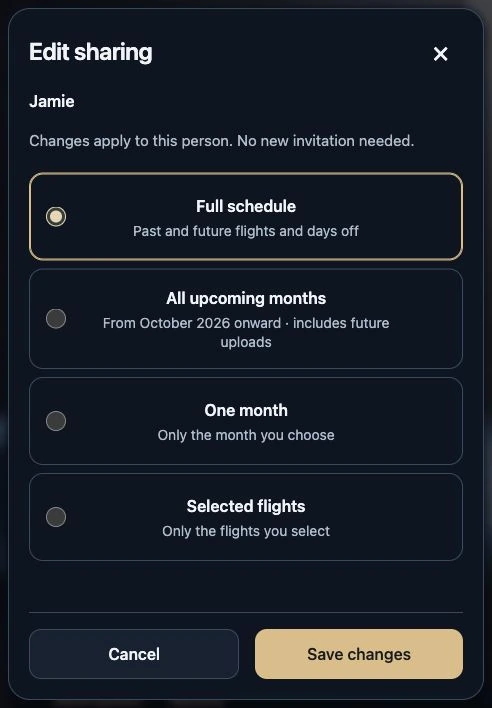
Start with the narrowest scope that suits your plans. Selected flights suits a single trip; One month suits a monthly roster. All upcoming months includes future uploads, while Full schedule includes saved past and future months.
Watch the illustrated walkthrough
Silent illustrated walkthrough made from actual ORBIT product captures. The screens are examples; this is not a screen recording.
Illustrated walkthrough · Actual product captures
Read the transcript
- Share your roster. Keep family close.
Import a supported roster or add flights manually. Start with a schedule you have reviewed.
Actual ORBIT screen · Example schedule
- Review before you save.
Check dates, airports and the time basis against your original roster. Confirm any uncertain entries.
Actual ORBIT screen · Example schedule
- Invite someone close.
In People, choose Invite someone close. Select who can follow and review what they will see.
Actual ORBIT screen · Example connection
- Choose what to share.
Select individual flights, one month, upcoming months or your full schedule. Check the scope before creating the invitation.
Actual ORBIT screen · Example connection
- Send the private link.
Send the invitation to your intended recipient. They sign in, accept it and open the shared calendar.
Actual ORBIT screen · Example schedule
- Keep it up to date.
Review revised rosters before saving. Schedules do not sync continuously with the airline. Edit or pause sharing when needed.
Actual ORBIT screen · Example connection
Questions before you start
Will ORBIT keep reading changes from my airline?
No. A roster import is a reviewed copy, not a continuous airline connection. Import the revised roster when plans change, compare it with your saved entries and review the changes before saving.
Does a new import remove flights missing from the roster?
Missing flights are not removed automatically. Review cancellations and recurring calendar events yourself, resolve conflicting versions and check the final calendar before sharing it.
Can I change what someone sees later?
Yes. In People, review the connection and choose Edit sharing, Pause sharing or Remove. Removing access stops future access through ORBIT; it cannot remove information already saved outside the app.
Start with the app