People / Schedules & sharing
Keep your people in the loop.
My schedule brings your crew roster into one calendar. Review your flights and choose what to share with family and friends.
Sign in to use People and share your schedule.
Share your crew roster with family
Start with your own schedule
- Sign in. Open Settings → Account. People and schedule sharing use your ORBIT account.
- Add your schedule. Add flights and calendar days manually, or import a supported roster or calendar. Review dates, airport codes and times before confirming.
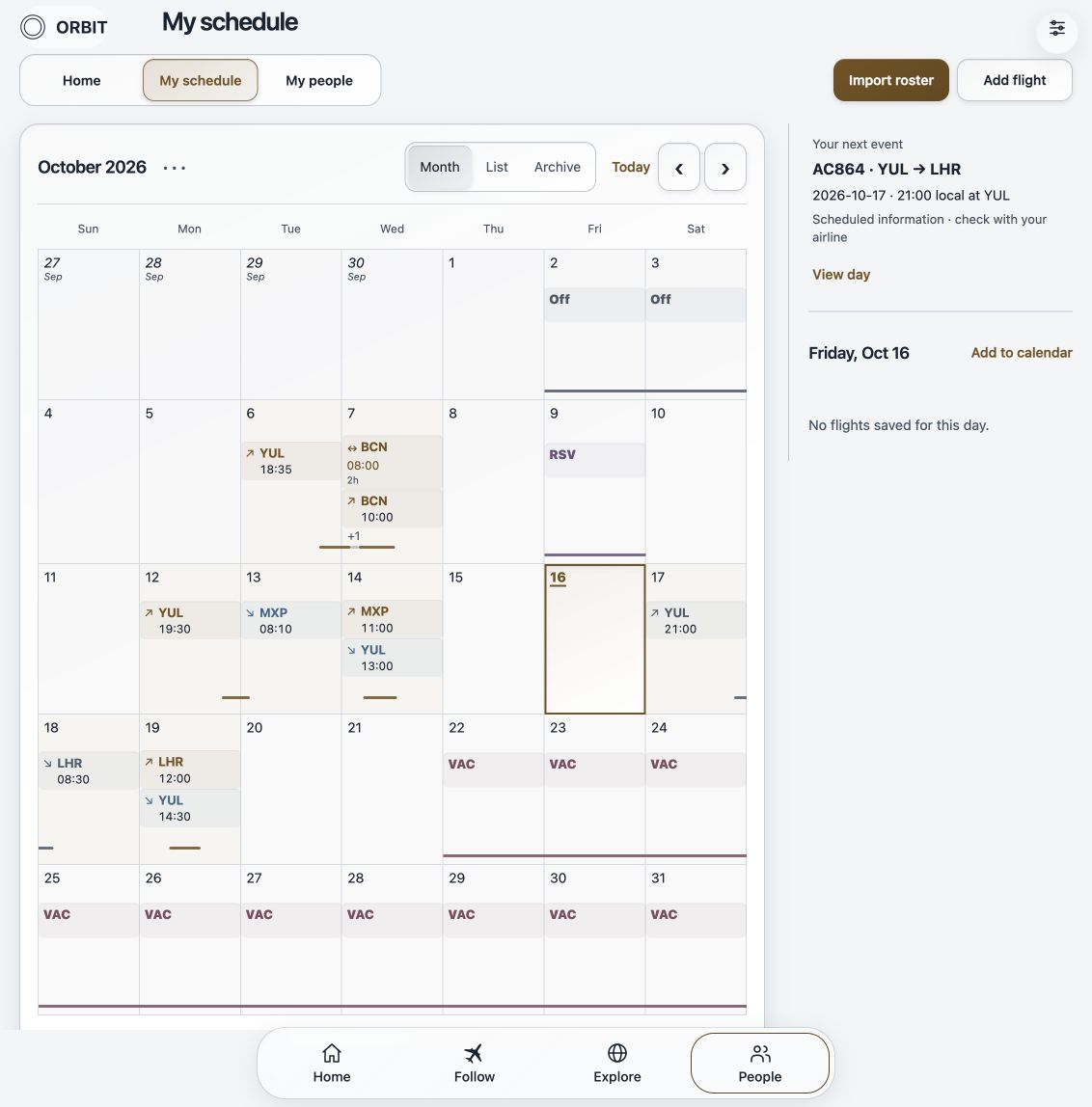
- Check the calendar. Switch between Month, List and Archive. Select a day to see its entries; use Today to return to the current date.
Review the details that matter
The calendar brings flights and saved calendar days together. Flight cards show departure and arrival times at each airport. Review flight groups and times when importing a roster, and check your home airport so your own calendar has the right context.
Open a day to add or edit an entry. Review changes before sharing an updated schedule. A saved schedule describes your plans; it does not guarantee a flight’s current status.
Choose what someone can see
In People, choose Invite someone close, name the person, choose a sharing scope and review it before creating a private invitation. Send the link to the person you intended; they accept it through their account.
| Sharing scope | What it includes |
|---|---|
| Full schedule | Your schedule across saved months. |
| All upcoming months | The starting month onward, including future uploads. |
| One month | The month you choose. |
| Selected flights | Only the flights you select. |
Shared access follows the invitation’s permissions. Your destination photo albums are not part of a People invitation. Review the scope rather than assuming someone can see everything in your account.
Follow someone’s schedule
You do not need a roster of your own to join someone’s Crew. Open their private invitation, sign in, then review and accept the invitation. In People, choose that person’s calendar to see the schedule they have shared with you.
The sender chooses the sharing scope and can change or pause access.
Manage your connections
Return to People to review who has access, change the sharing scope, pause sharing or remove a connection. Choose a person in the calendar to view the schedule they have shared with you.
Removing access prevents future access through ORBIT. It cannot remove information someone has already saved outside the app. Invite only people you trust and keep invitation links private.
KEEP EXPLORING