ORBIT / Practical guides
Let family flight updates come to you.
Accept a private schedule invitation, choose which shared flights and updates to follow, then enable and test notifications on your device. Automatic alerts depend on supported flights, account access and remaining allowance.
Automatic flight alerts require sign-in, an eligible account, supported flights and remaining allowance.
Can my family get a landing alert without seeing my whole roster?
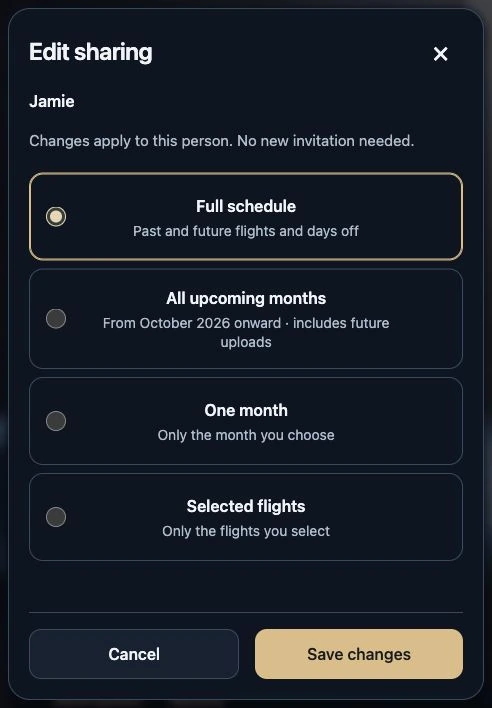
Yes. Choose Selected flights and share just the flight you want your family to see. After accepting your private invitation, your family member can choose Landing only for that flight.
Two flights, one shared
In this fictional roster, you fly from Montréal to Toronto and back. Select only Toronto → Montréal when you create the invitation. Your family member sees the return flight. The Montréal → Toronto flight stays private.
A landing alert depends on a landing report for the supported flight, an eligible account, remaining allowance and notifications enabled on the device. It can arrive late. Landing and arrival at the gate are different events.
Set up family flight alerts
Accept the private invitation.
Open the invitation from the person sharing their schedule, sign in and accept it. You do not need a roster of your own. Only flights within their chosen sharing scope are available to you.
Choose the flights and updates you want.
In People, open the person under People I follow, then Sharing & notifications → Following & flight alerts. Choose all shared flights, a date range or one flight. Select your alerts, choose when the live view should appear and review before saving.
Connect this device.
Open Settings → Notifications, choose Enable notifications and allow the device permission request. Choose Send test to check delivery. On iPhone or iPad, use the ORBIT app or add the web app to the Home Screen.
Check the flight connections.
Review the shared flights and their alert status. ORBIT connects selected shared-flight alerts automatically near departure; flights paused by the owner stay paused. A successful test confirms device delivery, not the availability of a particular flight report.
If an expected update does not arrive
Check that following is not paused, the flight is in your selection, the owner still shares it and its alerts are connected. Confirm notifications on this device and check your remaining allowance.
Reported flight events, provider coverage, connectivity and device settings affect delivery. Updates can be delayed or unavailable. Check your airline for operational flight information.
Watch the illustrated walkthrough
Silent illustrated walkthrough made from actual ORBIT product captures. The screens are examples; this is not a screen recording.
Illustrated guide · Live Activity shown; alerts configured separately
Read the transcript
- Accept the invitation.
Sign in and accept the private schedule invitation. You can see only the flights your person chooses to share.
Actual ORBIT screen · Example schedule
- Choose flights and updates.
In People, open People I follow, then Sharing & notifications. Choose the shared flights and alerts you want.
Actual ORBIT screen · Example schedule
- Enable and test notifications.
Open Settings → Notifications → Enable notifications. Allow this device, then choose Send test to check delivery.
Actual iPhone capture · Live Activity
- Check flight connections.
Review each selected flight’s alert status. A successful device test does not confirm coverage for a particular flight.
Actual ORBIT screen · Example schedule
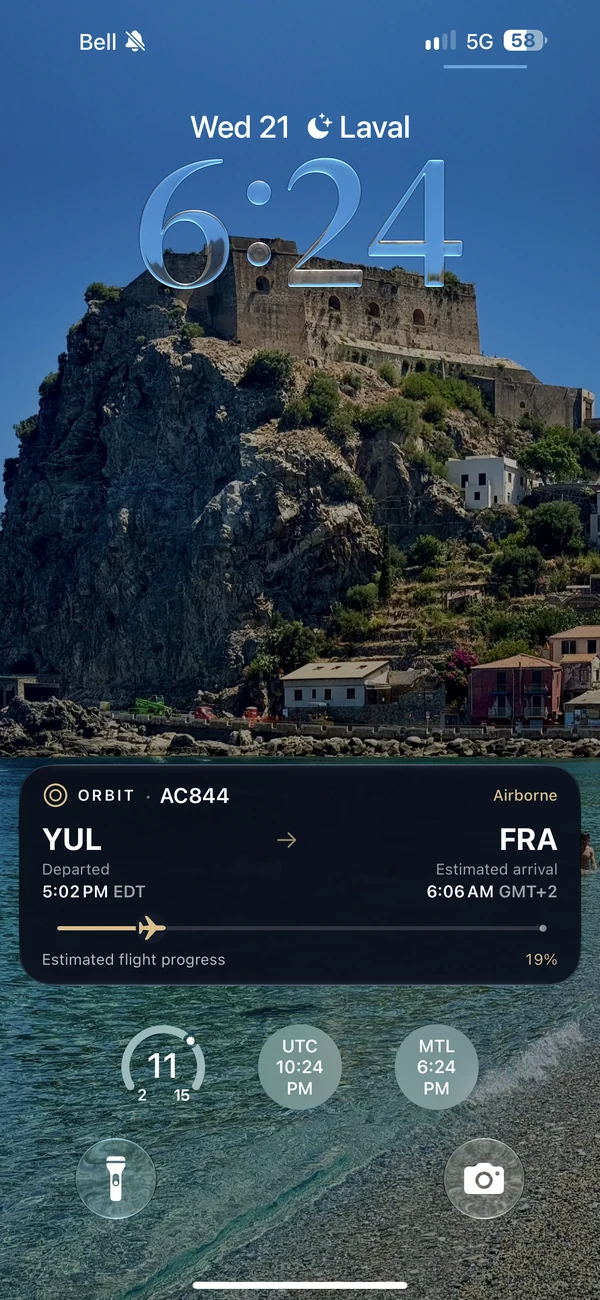
- Add a Live Activity.
In a compatible TestFlight build, sign in, sync a supported flight and choose Start Live Activity in its details.
Actual iPhone capture · Live Activity
- Know what to expect.
Alerts need supported flights, account access, allowance and device permission. Updates can be delayed. Check the airline for operational information.
Actual iPhone capture · Live Activity
Questions before you start
Can I choose landing alerts only?
Yes. Choose Landing only during following setup, then review and save. You can return to the person’s following preferences to change your selection.
Does sharing a schedule guarantee automatic alerts?
No. Sharing controls access to a saved schedule. Automatic alerts also require an eligible account, a supported connected flight, remaining allowance and enabled device notifications.
How do I put the flight on my Lock Screen?
In a compatible TestFlight build, sign in, let the supported flight sync, open its details and choose Start Live Activity. This requires compatible devices with Live Activities enabled. Simulations do not support Live Activities.
Start with the app