ORBIT / Practical guides
Turn past flights into a map of your travels.
Add a past flight to your Atlas or import existing travel records, review the details and save. Your routes appear on a personal 3D globe, alongside the countries and cities you have visited.
Start in your browser. No account needed to explore.
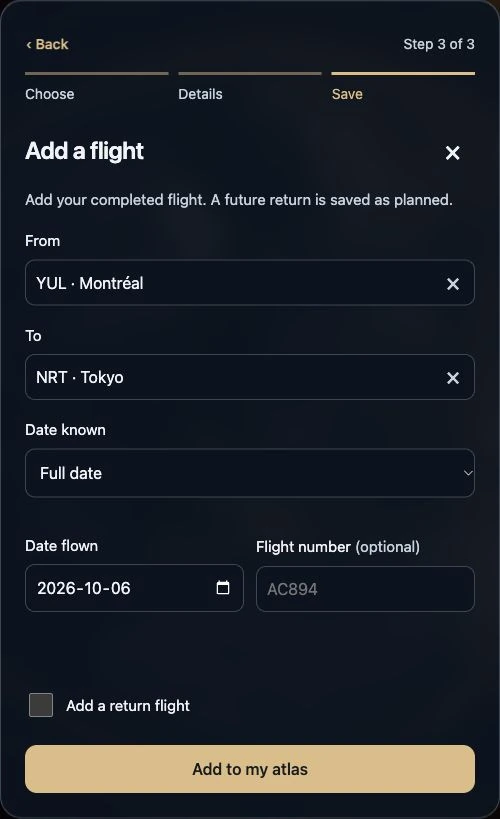
Build your flight history, one record at a time
Start with a journey you remember.
In Atlas, tap + and choose a past flight. Add the departure and arrival airports. A flight number is optional; use your own travel records to check the route.
Keep uncertain dates honest.
Choose a full date, month and year, year only or I don’t remember. Do not invent a day to complete the record. You can also save countries and cities without flight details.
Bring in an existing history.
Open Import into ORBIT in Settings to choose a supported logbook, spreadsheet, calendar file or pasted list. Review the past-flight entries. Standard file reading runs on your device. AI assistance and background AI reading are unavailable for launch.
Review, save and revisit.
Compare airport codes, dates and repeated flights with the source before saving. Imported records stay drafts until you confirm them. Open My Atlas to revisit the saved journeys and check that the routes match your records.
Protect the history you build
Guest information stays in the browser or installation where you created it. Make a backup before clearing browser data or switching devices. Sign in through Settings → Account for supported account sync.
Use Settings → Data & help → Back up or restore my data, and save every numbered ZIP part. Keep your original travel files and photos as well. Destination photo albums require sign-in.
Watch the illustrated walkthrough
Silent illustrated walkthrough made from actual ORBIT product captures. The screens are examples; this is not a screen recording.
Illustrated walkthrough · Actual captures · Globe uses sample data
Read the transcript
- Start with one past flight.
In Atlas, choose +, then add a past flight. Select its departure and arrival airports.
Actual ORBIT screen · Add a flight
- Use the date you know.
Choose a full date, month and year, year only or I don’t remember. The flight number is optional.
Actual ORBIT screen · Add a flight
- Bring your existing records.
Use Import into ORBIT for supported files or pasted records. Standard file reading is available. AI reading is unavailable at launch.
Actual ORBIT screen · Add a flight
- Review before you save.
Check airports, dates and duplicates. Imported entries stay in a draft until you confirm them.
Actual ORBIT screen · Add a flight
- See routes on your globe.
Saved journeys appear in My Atlas. You can also save places without a flight. This screen shows a sample preview.
Actual ORBIT screen · Sample globe preview
- Keep a backup.
Guest data stays in this browser or installation. Back up before clearing it or switching devices. Keep every numbered backup part.
Actual ORBIT screen · Sample globe preview
Questions before you start
Do I need a flight number or exact date?
No. You can add a past flight using its airports and the date detail you remember. A flight number is optional. Countries and cities can be added without a flight or date.
Is a flight history map live flight tracking?
A flight history map shows journeys you have saved. Live flight lookup is a separate feature that requires sign-in, an eligible account, a supported flight and remaining allowance. Coverage depends on the flight-data provider.
Can I display my travel globe at home?
Yes. Try display mode on a tablet or computer you already own. No ORBIT hardware purchase is required. ORBIT hardware remains in development and is not for sale.
Start with the app